How to use Tabdial
For Tabdial 0.2 · Updated October 8, 2026
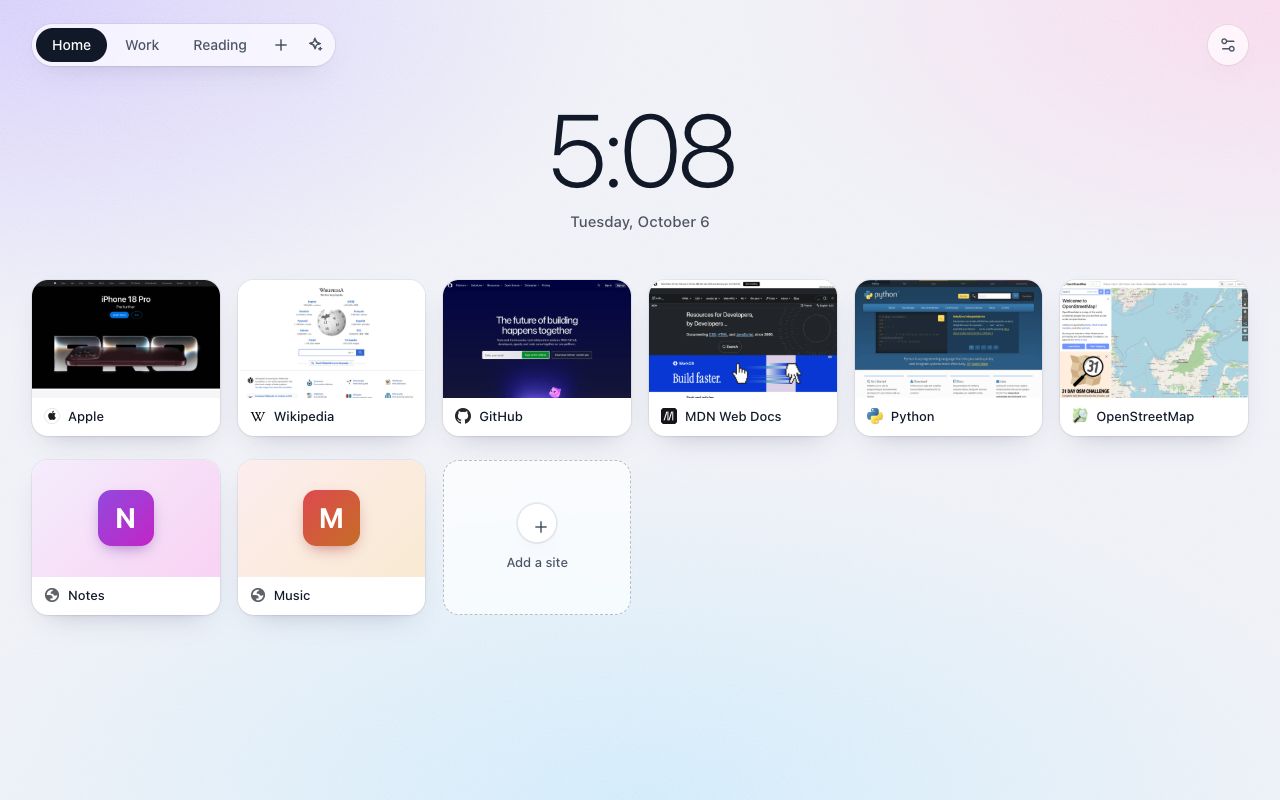
In short: Tabdial shows your websites as tiles, called dials, on every new tab. Dials live in groups, and the group names along the top switch between them. You do almost everything on the new tab page itself. Settings, the button in the top-right corner, holds the background, sync, Jump, backups, and import and export.
- Get started
- Add a site
- Edit, arrange and delete dials
- Groups
- Find a dial with the search box
- Jump from the address bar
- Background and layout
- Same dials on your other computers
- Backups and restoring
- Export, import and moving over
- The one-time unlock
- Google Drive backup
- Sort a group
- Something not working?
Get started
- Install Tabdial from the Chrome Web Store or from Microsoft Edge Add-ons. If the browser asks whether you meant to change your new tab page, keep the change.
- Open a new tab. The first time, Tabdial shows Your favorite sites, one click away.
- Pick a way to fill it:
- Add your most visited sites adds the sites your browser lists as the ones you visit most. The browser asks once for permission to read that list; Tabdial reads it and gives the permission back.
- Add a site adds one site by its address.
- Import from another speed dial opens Settings at the import buttons. See Export, import and moving over.
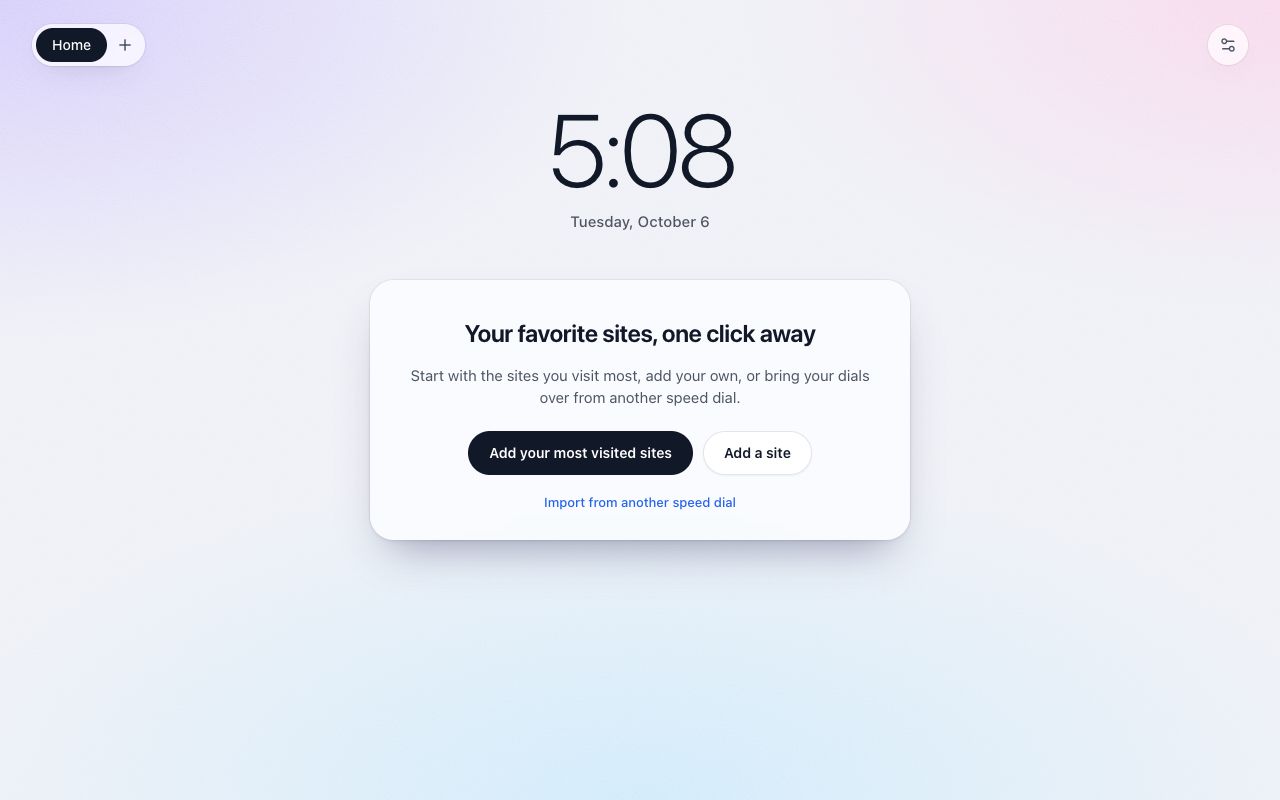
Your first group is called Home. Rename it any time by double-clicking it.
Add a site
From the new tab page
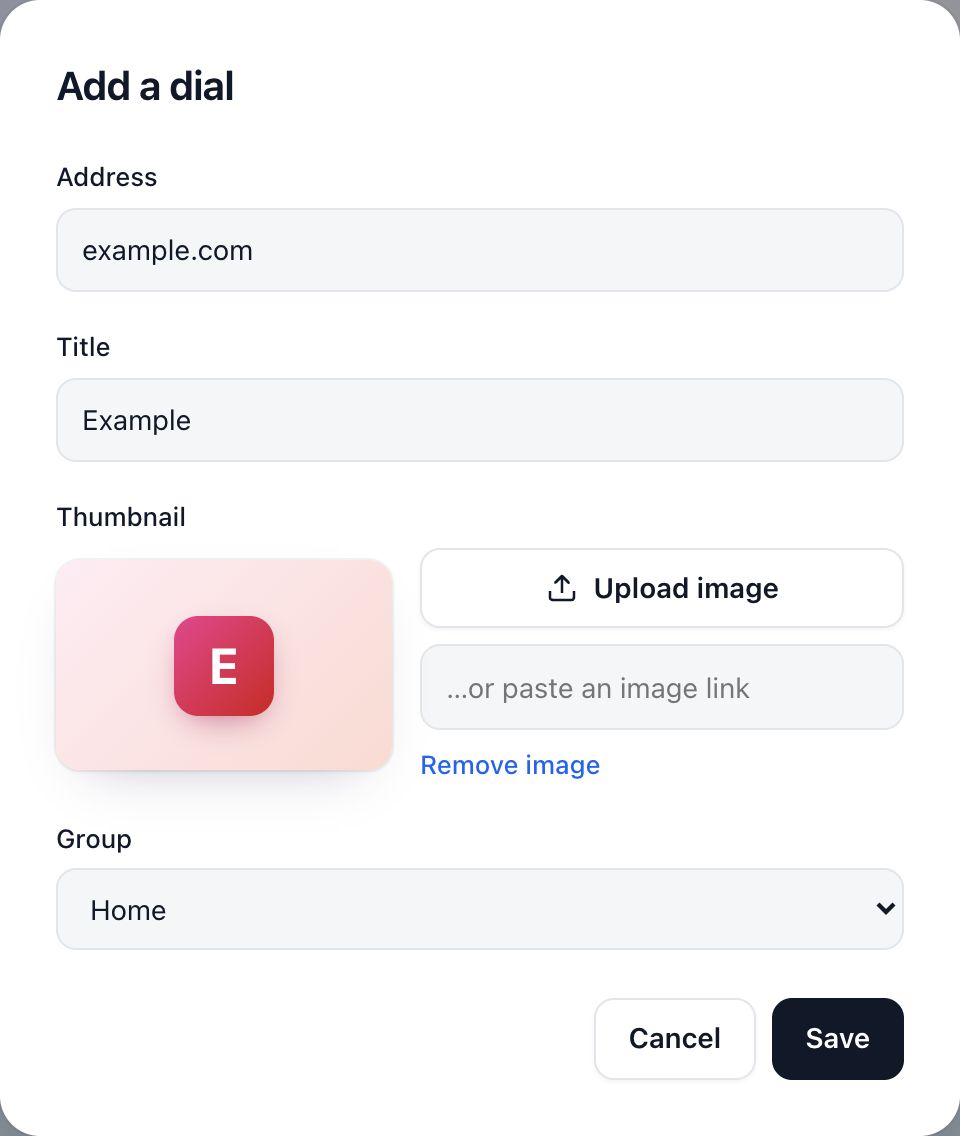
- Click the Add a site tile, the one with the + at the end of your dials.
- Type the Address.
example.comis enough. - Optionally give it a Title, a Thumbnail and a Group, then click Save.
From the page you are reading
Click the Tabdial button in the browser toolbar (Add this page to Tabdial). The page joins the group you looked at last, with a picture of the page as its thumbnail. A ✓ on the button tells you it worked.
Don't see the button? Click the puzzle-piece Extensions button in the toolbar and pin Tabdial. The button works on ordinary web pages, not on the browser's own pages or its extension store.
Thumbnails
A dial without a picture shows the first letter of its title on a colored tile. To use your own picture, open the dial's Edit dialog and click Upload image, or paste a link to an image in …or paste an image link. Remove image goes back to the letter tile.
Edit, arrange and delete dials
- Edit: point at a dial and click the pencil button in its top-right corner. You can change its address, title, thumbnail and group.
- Delete: click Delete in the same dialog. Removed one by mistake? Restore today's copy from Backups.
- Reorder: drag a dial onto another one to put it in that place. Drop it on the Add a site tile to move it to the end.
- Move to another group: drag the dial onto that group's name at the top, or pick the group in the dial's Edit dialog.
Groups
- Create one: click the + next to the group names (New group), type a name and click Save. The new group opens.
- Switch: click a group's name. Tabdial opens the group you looked at last.
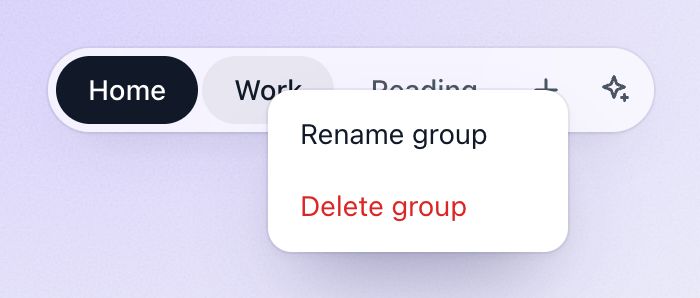
- Rename: double-click a group's name, or right-click it and choose Rename group.
- Delete: right-click a group's name and choose Delete group, or double-click it and click Delete group. Its dials go with it. Tabdial always asks first, and your last group can't be deleted.
With the unlock, Tabdial can also suggest which group each dial belongs in: see Sort a group.
Find a dial with the search box
Find a dial without remembering which group it's in:
- Click the search box under the clock (Search your sites or the web). A new tab puts the cursor in the address bar, so click the box first.
- Type a few words of the site's address or title. Tabdial shows the dials of all your groups whose address or title contains every word.
- Press Enter to open the first one, or click the one you want. Esc clears the box.
If no dial matches, Enter searches the web for your words with your browser's search engine. The search box looks only at your dials, never at your browsing history. Don't need it? Turn off Show the search box in Settings, under Dials per row. The search box is free.
Jump from the address bar
Open a site without opening a new tab first:
- Click the address bar, type z and a space. The address bar switches to Tabdial.
- Type a few words of the site's address or title, such as
mailorgit docs. - Press Enter to open the best match, or use the arrow keys to pick another suggestion.
Tabdial looks for dials whose address or title contains every word you typed, and opens the one you visit most often and most recently. If nothing matches, it searches the web for your words with your browser's search engine. Jump is free.
Sites that aren't dials: turn on Also look in browsing history under Jump in Settings, or pick that line at the bottom of the suggestions. Jump then finds any page you have visited. Tabdial reads your history only on this computer and never sends it anywhere. Turn the setting off to give the permission back.
Background and layout
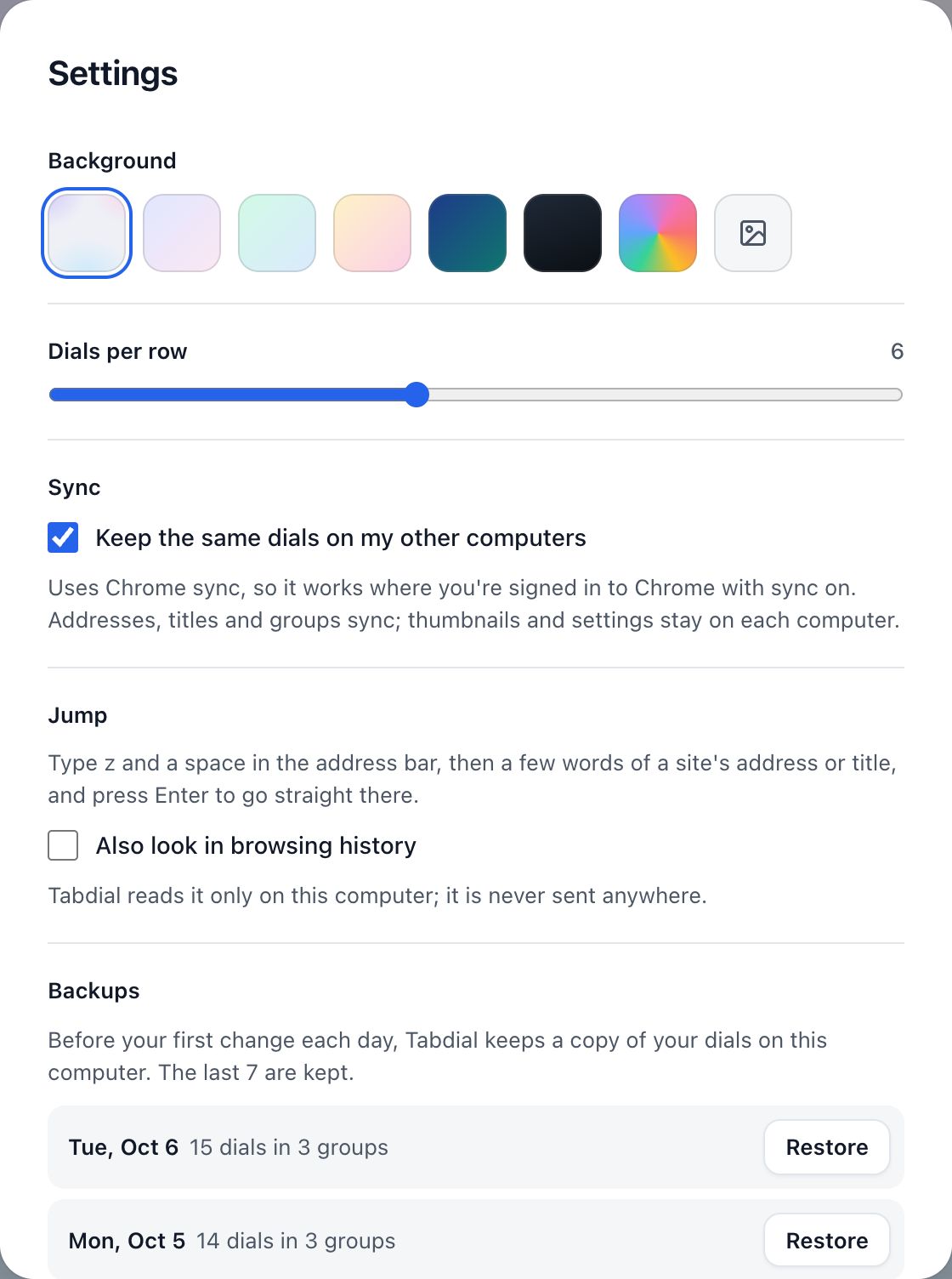
In Settings, under Background, pick the default, one of five gradients, any color (Pick a color) or your own picture (Upload a background image). Dials per row sets how many dials fit in a row, from 3 to 10. Light and dark mode follow your system setting.
Same dials on your other computers
Keep the same dials on my other computers, under Sync in Settings, is on from the start. It uses Chrome sync, so it works on every computer where you are signed in to Chrome with sync on. In Firefox it uses Firefox Sync, with Add-ons ticked in its settings.
- Addresses, titles and groups sync. Thumbnails, the background and the layout stay on each computer. To bring thumbnails along, export a file and import it on the other computer, or restore from Google Drive.
- Turning sync back on keeps this computer's dials and adds what your other computers have.
- Chrome sync has a size limit. If your list outgrows it, Settings says so and stops syncing; your dials stay as they are.
Backups and restoring
Before your first change each day, Tabdial keeps a copy of your dials, thumbnails included, on this computer. The last 7 copies are kept, or 90 with the unlock; past the newest 7, a copy keeps your dials but not their thumbnails.
- Open Settings and find Backups. Each copy shows its date and how many dials and groups it holds.
- Click Restore next to the one you want, and confirm.
Restoring replaces your dials with that copy. The dials you had are kept as Before your last restore, so you can undo it from the same list.
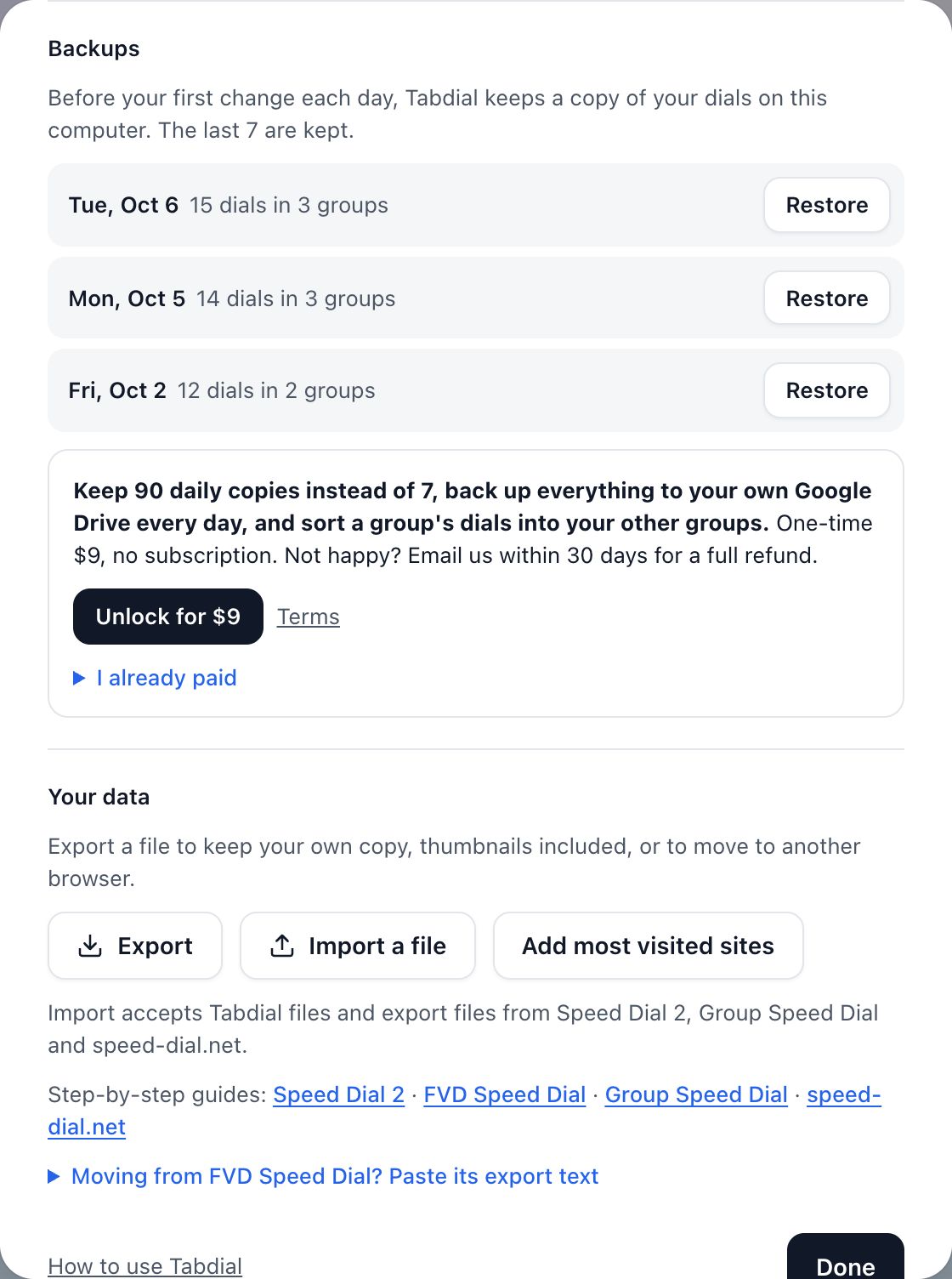
These copies stay on this computer. For a copy you keep yourself, use Export, or the Google Drive backup.
Export, import and moving over
All of this is under Your data in Settings.
- Export saves everything, thumbnails and settings included, to a file named like
tabdial-2026-10-06.json. - Import a file reads a Tabdial export, or an export file from Speed Dial 2, Group Speed Dial or speed-dial.net. FVD Speed Dial gives you text instead of a file: open Moving from FVD Speed Dial? Paste its export text, paste it, and click Import pasted text.
- Add most visited sites adds the sites you visit most to the group you are looking at. Sites already there are skipped.
Importing only adds. A group with the same name as one you have is combined with it, dials you already have are skipped, and a dial missing its thumbnail gets the imported one. Importing the same file twice is harmless.
Step by step from another speed dial: Speed Dial 2 · FVD Speed Dial · Group Speed Dial · Speed Dial (speed-dial.net) · Infinity New Tab (by hand).
The one-time unlock
Everything above is free, with no limit on dials or groups. A one-time payment of US$9, no subscription, adds three things:
- 90 daily copies in Backups instead of 7.
- A daily backup to your own Google Drive, thumbnails and settings included.
- Sort, which suggests a better group for the dials in a group.
Buy it
- Open Settings, find Backups, and click Unlock for $9.
- Pay on the checkout page that opens.
- Go back to Tabdial's Settings. Within a minute, the offer turns into Google Drive backup.
On your other computers and browsers
Where Chrome sync is on, Tabdial unlocks by itself. Anywhere else, for example in Edge, open Settings, click I already paid, and either click Sign in with Google with the Google account you back up to, or enter the license key shown after you paid and click Unlock.
Not happy? Email us within 30 days for a full refund. Details are in the purchase terms.
Google Drive backup Unlock
- In Settings, under Google Drive backup, click Connect Google Drive and sign in with Google.
- That's it. Once a day, Tabdial writes everything to one file in your Drive. It can only see the files it creates there.
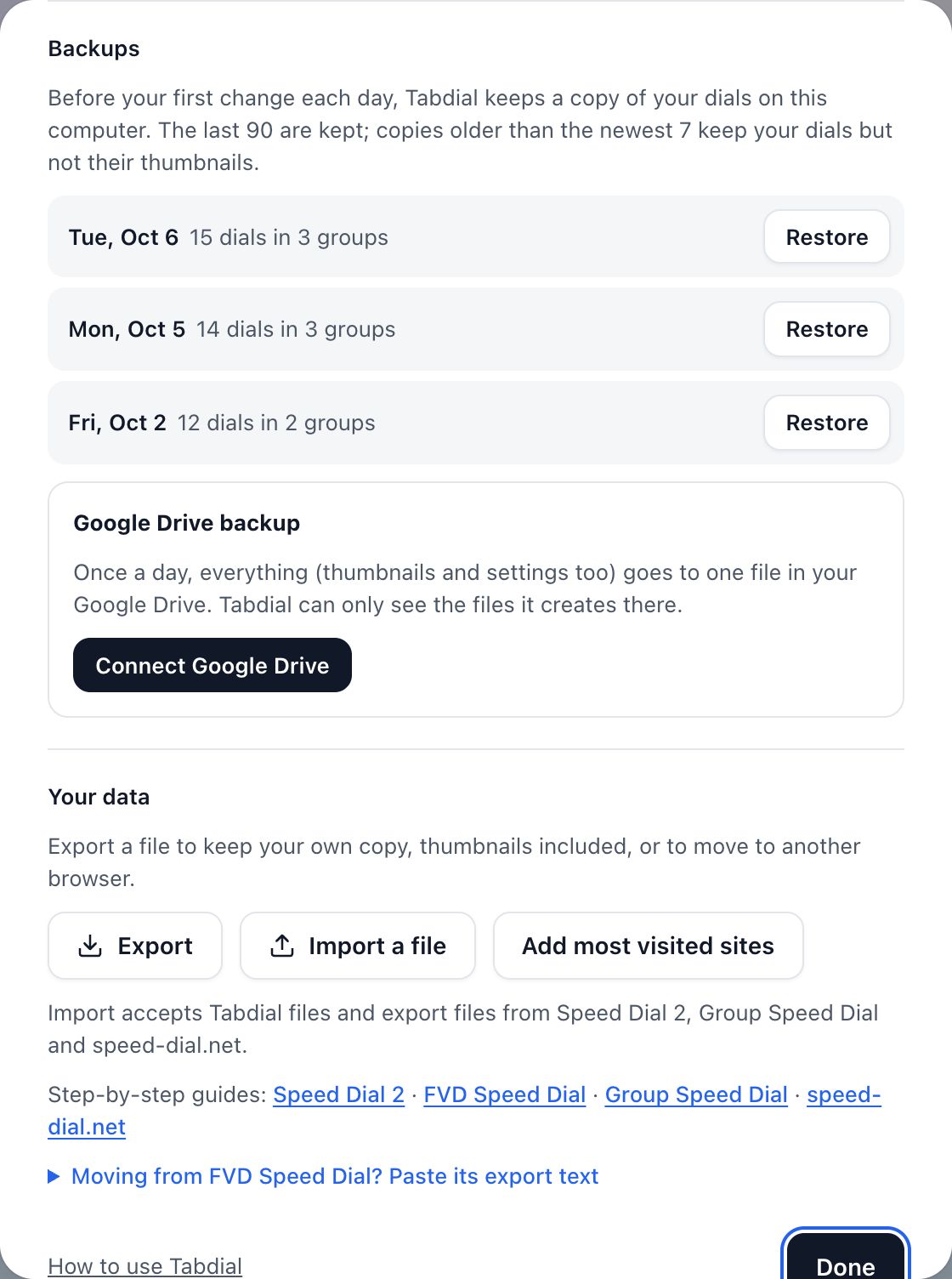
Settings shows which account it backs up to and when it last did. Back up now backs up straight away. Disconnect stops the daily backup; the file stays in your Drive.
Restore on a new computer
- Install Tabdial and unlock it as described above.
- Click Connect Google Drive with the same Google account. Tabdial tells you it found your backup, and leaves it untouched until you choose.
- Click Restore from Drive. It adds the dials and thumbnails that are missing here, and uses the backup's background and layout. Nothing already here is deleted.
Rather start this computer fresh? Click Back up now instead, which replaces the backup with this computer's dials.
If Settings says Google needs you to sign in again, click Reconnect Google Drive.
Sort a group Unlock
Sort looks at the dials in the group you are viewing and suggests which of your other groups each one fits better. Its button sits next to the + by the group names, once you have at least two groups and the group on screen has dials.
- Open the group you want to tidy and click Sort this group.
- Read what will be sent and click Continue.
- Tabdial lists the dials it would move and where. Uncheck any you want to leave, then click Move.
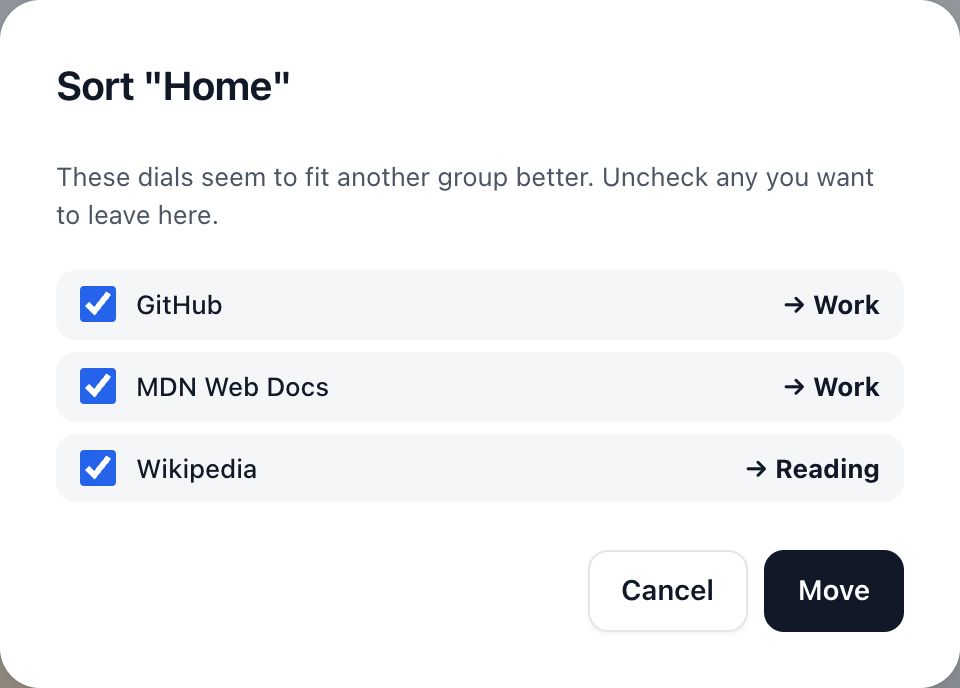
Nothing moves until you click Move, and a dial that fits none of your groups stays where it is. To make the suggestions, Tabdial sends the site names (like example.com) and titles of that group's dials, and the names of your other groups with a few of their site names, to nexuscortex.dev, which asks TypeSafe, an AI service in the US. We don't keep any of it. See the privacy policy.
Something not working?
- The new tab doesn't show Tabdial. The browser shows only one new tab extension at a time, and the one installed last wins. Turn the other one off in
chrome://extensions. If you answered the browser's "change it back" question, Tabdial was turned off: turn it back on there. - Typing z and your words searches the web for "z …". The address bar didn't switch to Tabdial. Type z, press Tab, then type your words.
- You paid, but Settings still shows the offer. Close and reopen Settings after a minute. Still there after a few minutes? Email us.
Anything else: email support@nexuscortex.dev and tell us what you saw.